What Is Adobe FrameMaker: A Beginner’s Guide
Adobe FrameMaker is a great desktop publishing and technical writing software created for working with large, complex documents.
Unlike standard word processors, FrameMaker is perfect for managing structured content, long manuals, and multi-format publishing. And more importantly, it gives you a highly structured data hierarchy for computer processing that still looks professional and attractive.
In this guide, we’ll introduce you to Adobe FrameMaker, highlighting its primary features, major benefits, and the steps to get started.
What Is Adobe FrameMaker?
Adobe FrameMaker is a professional document processing and desktop publishing application designed for structured content creation and maintenance..
It is primarily used by technical writers and organizations that need to produce detailed manuals, user guides, policy documents, catalogs, and other forms of technical documentation.
Compared to more traditional word processors, FrameMaker is used to run extensive content. It can hold hundreds or even thousands of pages within a single project, making it particularly suitable for enterprise-level documentation.
The software supports both structured and unstructured authoring, allowing users to work with free-form layouts or follow structured standards, such as XML and DITA for modular, reusable content.
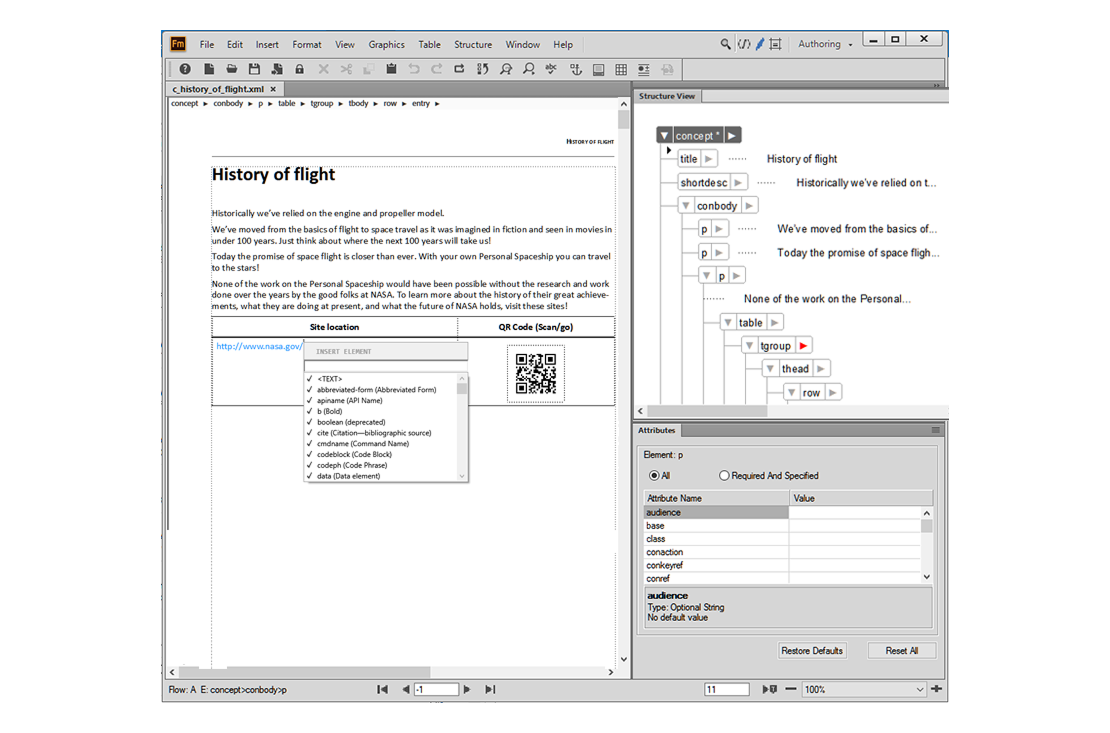
Adobe FrameMaker Interface
Key Features of Adobe FrameMaker
Adobe FrameMaker is a powerful tool packed with diverse features that facilitate users in creating, managing, and distributing large, well-structured documents.
- Structured and Unstructured Authoring: FrameMaker gives the flexibility to work in either structured or unstructured modes. Structured mode helps develop content based on XML and DITA standards. In the unstructured mode, your document layout is less restrictive and resembles a traditional word processor.
- Book and Chapter Management: A very useful feature of FrameMaker is the capability to manage a whole book composed of many chapters and files. It automatically regulates page numbering, tables of contents, cross-references, and indexes across multiple documents.
- Multi-Format Publishing: FrameMaker is capable of publishing a piece of content in different formats from one single source file. The teams can make print-ready PDFs, HTML5 for the web, and other digital formats without the need to re-create the content.
- Content Reuse and Templates: FrameMaker is compatible with reusable content blocks and templates. If there are changes, users can apply one change to several documents.
- Multilingual and Localization Support: FrameMaker helps international documentation projects by providing the same format after a document has gone through the translation process.
- Graphics and Multimedia Integration: Users may easily add pictures, diagrams, tables, and other kinds of visuals to the documents, which makes it perfect for technical manuals that need clear visual explanations.
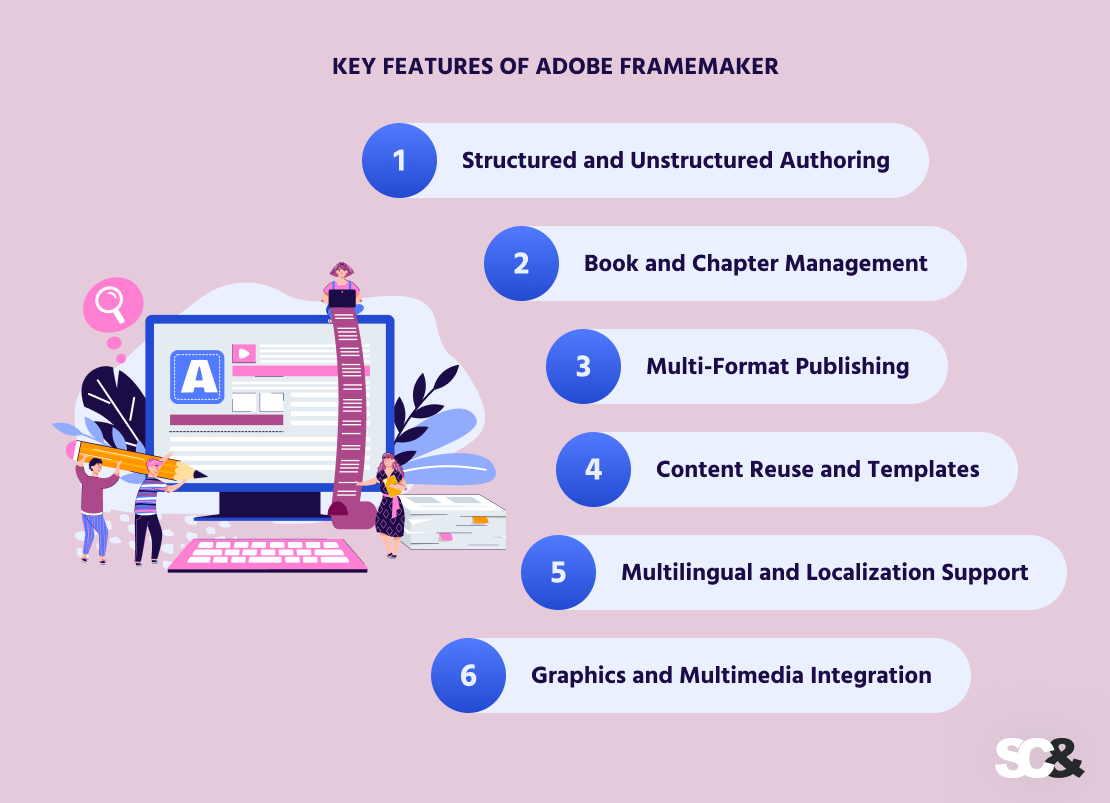
Key Features of Adobe FrameMaker
Benefits of Using Adobe FrameMaker
Beyond its strong features, Adobe FrameMaker offers many benefits that improve the way teams work and manage documentation.
First of all, by automating repetitive tasks like formatting, numbering, and indexing, FrameMaker allows writers to focus more on the content itself, boosting productivity and saving valuable time.
The software also provides professional coherence in documents, even when multiple authors contribute to a project. Standardized templates and workflows help maintain a polished and uniform appearance, reducing the effort required to correct flaws.
At the same time, built-in automation for cross-references, tables of contents, and indexing minimizes errors, so teams can be sure their documents remain accurate even after numerous updates.
For organizations managing long-term documentation projects, FrameMaker makes it easier to maintain and expand document libraries. Its structured approach supports version control, content reuse, and archiving, ensuring that materials stay organized and accessible over time.
The last benefit is Adobe FrameMaker development, which allows organizations to customize workflows, integrate the software with other systems, and build solutions that fulfil specific documentation needs. Such flexibility helps adapt FrameMaker to uncommon requirements and changing documentation processes.
For example, the FrameMaker-driven documents can be used for professional publishing through Adobe InDesign.
Uses of Adobe FrameMaker
Adobe FrameMaker is used across many industries where clear, structured, and large-scale documentation is required. Below are some of its most common uses.
Technical Manuals and User Guides
One of the most common uses of FrameMaker is creating large technical manuals. These typically include product user guides, installation instructions, troubleshooting handbooks, and maintenance manuals.
For example, a manufacturing company producing industrial equipment may need a 500-page service manual covering setup, safety instructions, diagrams, parts lists, and repair procedures.
FrameMaker helps manage all chapters in one book file, automatically generating page numbers, tables of contents, indexes, and cross-references.
Structured Authoring and Content Reuse
FrameMaker supports structured authoring using XML and DITA standards, which enables the creation of content in a structured manner, making it easier to reuse instead of duplicating the same information in different places.
For example, if a company launches different models of a product, safety instructions may remain the same in all manuals. Instead of rewriting the specifications in different manuals, the same information block can be reused across all documents.
Multi-Channel Publishing
Another popular use for FrameMaker is publishing content in multiple formats from a single source file. Users can create print-ready PDFs, responsive HTML5 for websites, and other digital assets without re-creating the document. For example, a company might need:

- A printed manual included with the product
- A downloadable PDF version on their website
- An online support center accessible from mobile devices
FrameMaker allows all these formats to be produced from the same content, keeping information correct across every channel.
Multilingual Documentation and Localization
Global organizations often need to publish documentation in several languages. FrameMaker helps maintain uniform formatting and structure when translating documents.
For example, a company operating in Europe, Asia, and North America may need the same product manual in English, French, German, and Japanese.
FrameMaker simplifies this process by maintaining invariant layouts and allowing integration with translation work cycles.
Policy, Compliance, and Regulatory Documentation
Lots of specialized industries, such as healthcare, aviation, finance, and government, require strict compliance documentation. These documents must follow precise formatting rules and include detailed cross-references and indexing.
FrameMaker is often used to create:
- Standard operating procedures (SOPs)
- Safety compliance manuals
- Regulatory submissions
- Audit documentation
Its structured approach guarantees documents remain even and easy to update when regulations change.
Training Materials and Internal Documentation
FrameMaker is also reasonable for developing structured training materials and internal guides. Large organizations use it to create onboarding manuals, technical training workbooks, and employee handbooks.

For example, an IT software development company may produce a comprehensive training guide explaining system architecture, security policies, and troubleshooting steps for new employees.
FrameMaker, in turn, confirms the document stays organized and easy to navigate, even as it expands over time.
Getting Started With Adobe FrameMaker
Getting started with Adobe FrameMaker may feel overwhelming at first due to its extensive features, but learning the basics allows beginners to create structured, professional documents with ease.
Install and Set Up FrameMaker
Before using FrameMaker, make sure your computer satisfies the system requirements, then complete the installation. When launched, take a moment to explore the workspace, which includes the menu bar, toolbars, document window, and the book panel for managing multi-chapter documents.
Understanding these areas is important because they provide access to the tools you will use to create, organize, and format your content.
Explore the Interface
As we stated above, FrameMaker offers two modes: structured and unstructured. Structured mode is ideal for content that requires modular organization and standards compliance, such as XML or DITA-based documents, while unstructured mode provides more flexibility for free-form layouts.
Familiarizing yourself with the interface and learning which mode fits your project will help you navigate the software and work properly from the start.
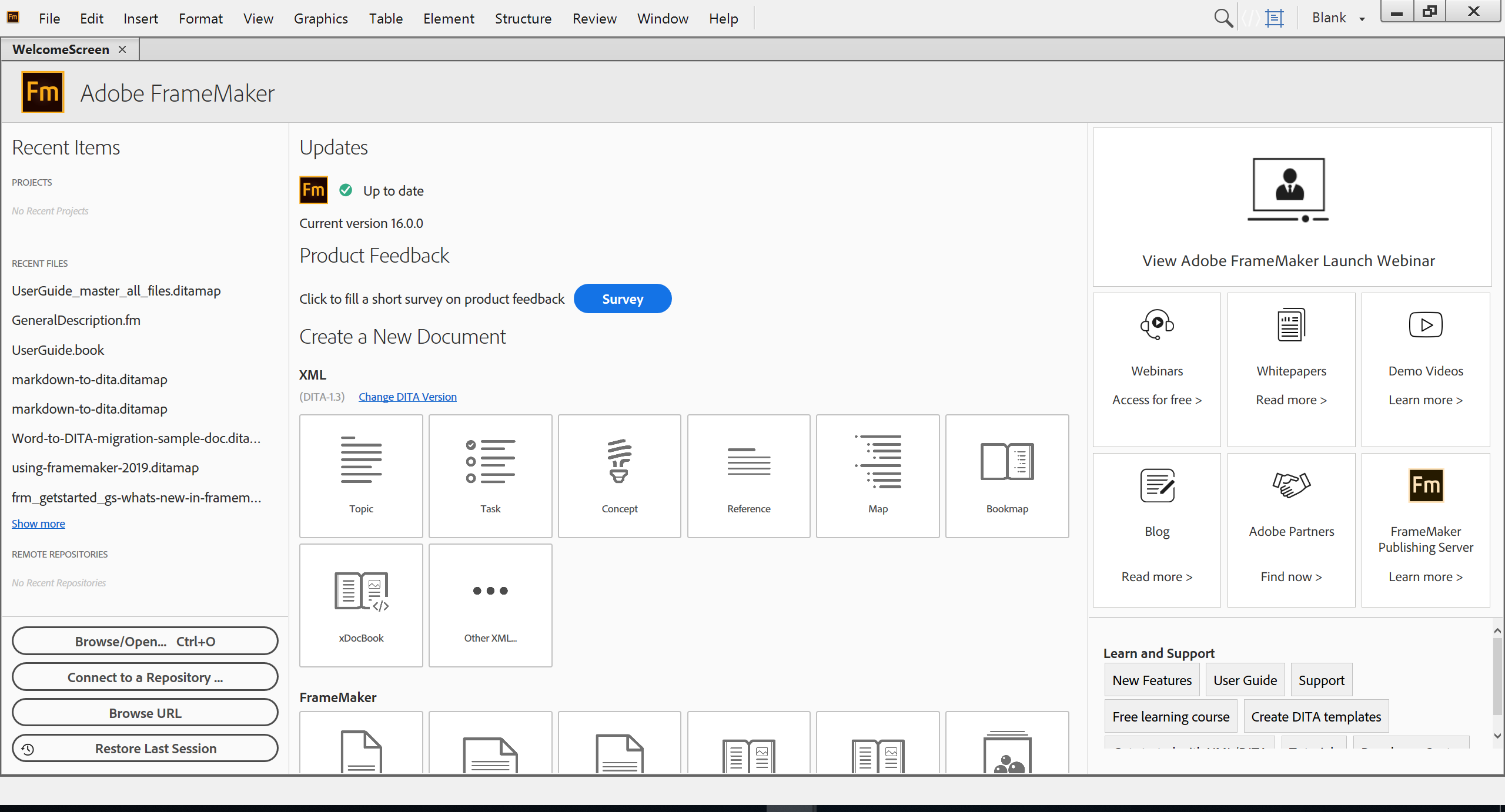
The Main Welcome Interface of FrameMaker
Create Your First Document
Starting with a simple document or a pre-designed template is a practical way to begin. Templates provide even formatting and save time, especially for beginners.
Within the document, you can add headings, paragraphs, tables, and images to structure your content clearly.
Using paragraph and character styles ensures that formatting remains uniform throughout the document, which is critical for maintaining professional quality in longer publications.
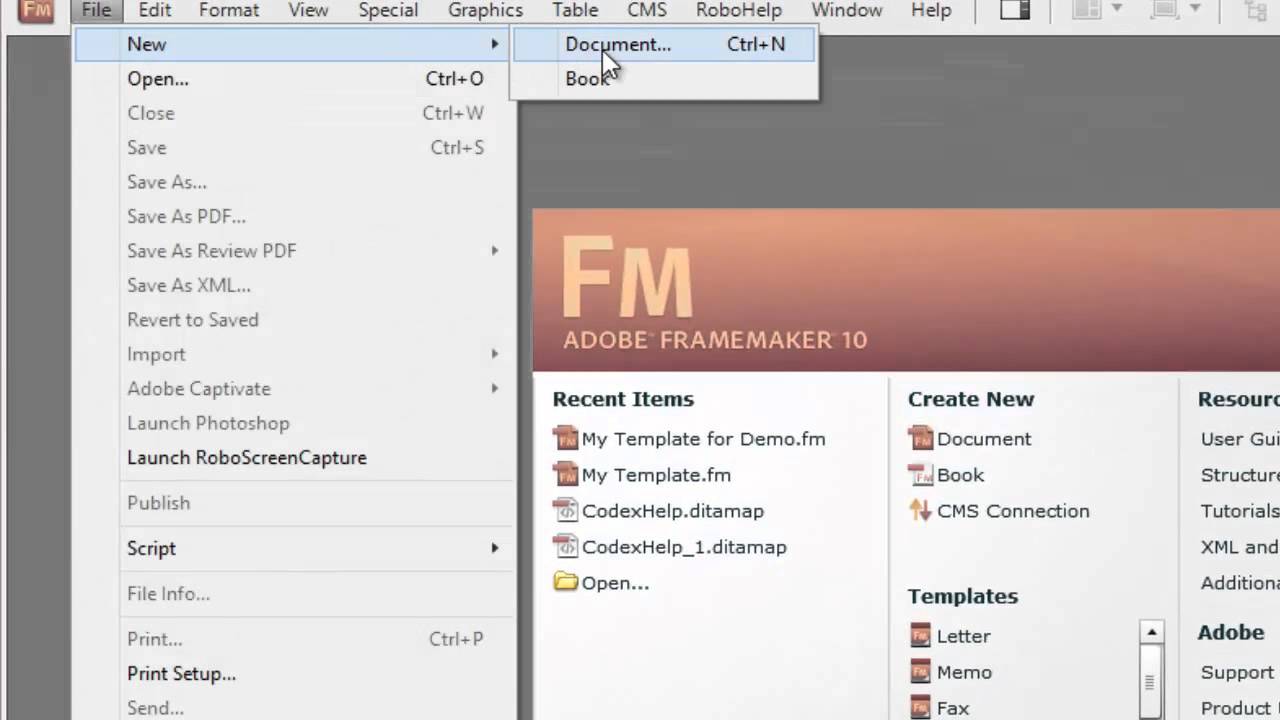
Creating Your First Document
Organize with Books and Chapters
As your documents grow, FrameMaker’s book feature allows you to combine multiple files into a single, cohesive project.
This feature makes it easy to manage chapters, maintain automatic page numbering, and generate tables of contents, indexes, and cross-references. The book panel ensures that even large manuals remain well-organized and navigable, saving time when updating or reorganizing content.
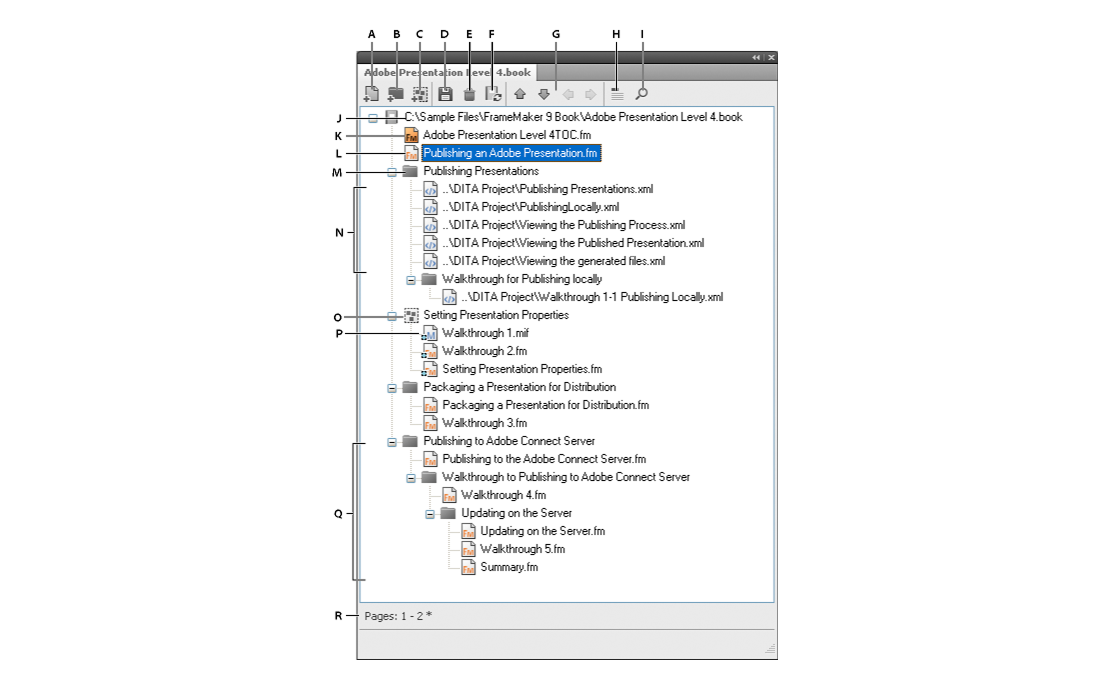
The Adobe FrameMaker Book Panel
Save, Export, and Publish
FrameMaker provides multi-format publishing from a single source file, which supports consistency across all outputs. You can export your document as a high-quality PDF for print, create responsive HTML5 content for online use, or produce ePub files for digital reading.
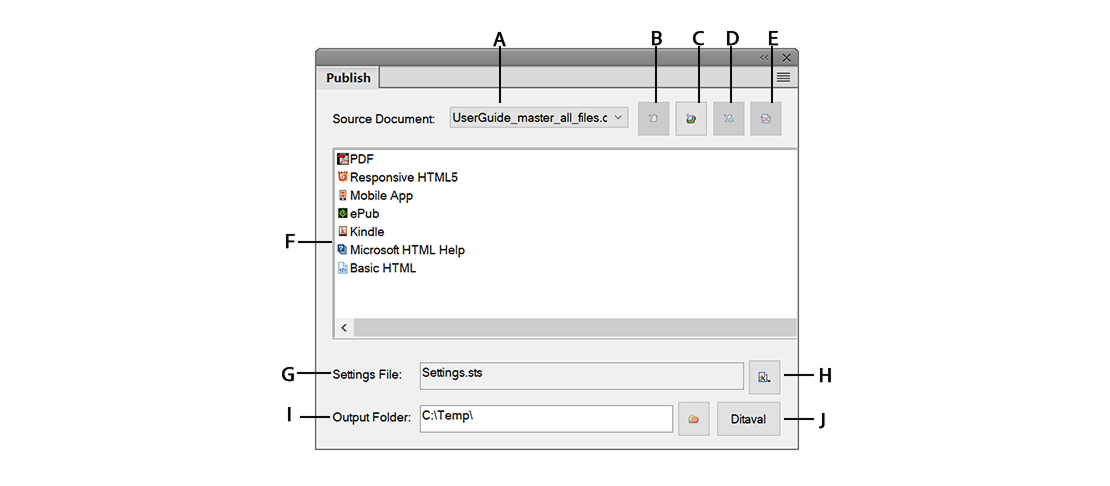
Publish Panel Overview
Frequently Asked Questions (FAQs)
What is Adobe FrameMaker used for?
Adobe FrameMaker is used to create large, structured, and professional documents such as technical manuals, user guides, training materials, and compliance documentation. It is useful for projects that require evenness, multi-format publishing, and reusable content.
Is Adobe FrameMaker suitable for beginners?
Yes. Though FrameMaker is full of advanced features, beginners can start with simple documents or templates and gradually explore its structured authoring tools. Its interface provides built-in tutorials and help resources that make learning way manageable.
What file formats does FrameMaker support?
FrameMaker supports multiple formats. You can create high-quality PDFs for print, responsive HTML5 for online use, ePub files for digital reading, and XML/DITA for structured content workflows.
How is FrameMaker different from Microsoft Word or InDesign?
Unlike Word or InDesign, FrameMaker is designed for long, structured, and technical documentation. It provides tools for managing chapters, cross-references, indexing, templates, and multi-format publishing.
Can FrameMaker manage multilingual documents?
Yes. FrameMaker supports multilingual documentation and localization, maintaining the same formatting and structure across translated versions.
How can I get started with FrameMaker?
Beginners should start with templates or small documents, explore paragraph and character styles, and gradually learn structured features like books and chapters.