How to Build a BLE App: 7 Steps from Device Profile to Release
Key Takeaway: How to build a BLE app: start with the device’s GATT profile, choose a native or cross-platform stack, and handle platform permissions. Then implement scanning, connection, and data exchange, add reconnection and background logic, and test on real hardware and many phone models. OTA firmware updates can be the most demanding part.
How a BLE App Talks to a Device
In a typical BLE setup, the phone running the app acts as the central device, while the sensor, lock, tracker, or another gadget acts as the peripheral. The peripheral broadcasts short advertising packets, and the phone scans for them, identifies the right device, and starts a connection.
After the connection is established, communication typically happens through GATT. The peripheral exposes a set of services, and each service contains one or more characteristics. A service groups related data or functions, while a characteristic represents a specific value or operation.
For example, a fitness sensor may have a battery service and a heart rate service. Inside them, characteristics can store the battery level, the current heart rate, or device status. The app reads these values, writes settings, or subscribes to updates.
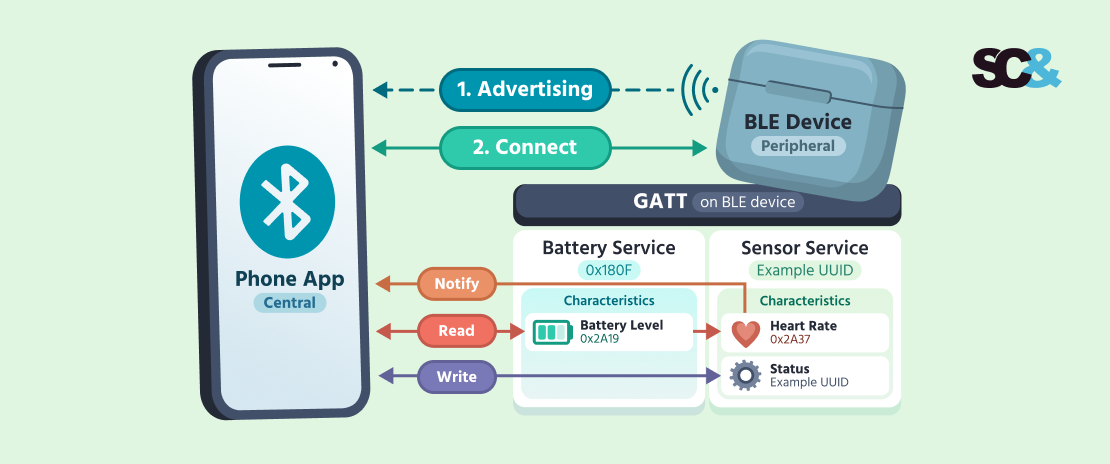
BLE communication usually relies on four basic actions: read, write, notify, and sometimes indicate. Read retrieves a value. Write sends a command or setting. Notify lets the device push updates to the app when data changes, which is useful for live measurements or status changes.
In practice, building a BLE app means mapping the device profile correctly, handling connection states, and deciding which characteristics are read-only, writable, or streaming updates. These decisions are one part of the wider IoT application development process, where the app must keep pace with firmware and hardware schedules.
How to Build a BLE App in 7 Steps
Learning how to develop a Bluetooth app takes more than connecting a smartphone to a device. Developers need to understand the device’s communication protocol, select compatible technologies, handle connection failures, and test how the application behaves outside ideal conditions.
These seven steps follow how we approach BLE app development, from defining a device profile to preparing the app for release.
1. Define the Device Profile
Before writing application code, document how the BLE device communicates. This starts with its Generic Attribute Profile (GATT), which organizes device functionality into services and characteristics.
The device specification should describe:
- Services and characteristics: UUIDs, supported operations, and the purpose of each characteristic.
- Data formats: Byte order, value types, measurement units, and message structure.
- Communication direction: Which operations the app initiates and which updates the device sends.
- Security: Which characteristics require encryption, authentication, or bonding.
- Error handling: Expected responses, timeouts, and behavior after interrupted operations.
For example, a temperature sensor might expose one characteristic for measurements and another for configuration. The app subscribes to temperature notifications but writes a value when the user changes the reporting interval.
The specification should also explain whether commands require acknowledgments and how the app identifies different device models or firmware versions.
If the hardware team is still working on firmware development, agree on a documented protocol before starting full application development ideally during the discovery phase. Any subsequent changes should be versioned and communicated to the mobile team.
This reduces the risk of rebuilding application logic whenever the device’s communication behavior changes.
2. Choose the Tech Stack
The right technology depends on supported platforms, background communication requirements, hardware complexity, and the team’s existing expertise.
Native development (iOS app development with Core Bluetooth, Android app development with the Android BLE API) offers direct access to platform Bluetooth APIs. Cross-platform frameworks can reduce duplicated application code, although some hardware functionality may still require native implementation.
| Approach | BLE Library | When It Fits |
| Native iOS | Core Bluetooth | Maximum control over iOS BLE behavior and complex background requirements |
| Native Android | Android BLE API, Nordic Android BLE Library | Android-specific integrations and advanced connection management |
| Flutter | flutter_reactive_ble, flutter_blue_plus | Shared mobile codebase, with desktop BLE support depending on plugins and target platforms |
| React Native | react-native-ble-plx | Teams experienced with JavaScript or TypeScript |
| Kotlin Multiplatform | Kable | Shared communication logic with native user interfaces |
Technology options for BLE apps
Flutter supports desktop applications, but individual BLE libraries do not necessarily support every desktop operating system. Check plugin compatibility before choosing the architecture.
SCAND’s Flutter development expertise also supports projects that combine cross-platform interfaces with native components.
For example, in our connected car and fleet monitoring project, Flutter provided the mobile interface, Kotlin Multiplatform handled shared device communication logic, and C/C++ components supported low-level operations.
This architecture allowed the team to separate the application interface from hardware-specific functionality and reuse core components across supported platforms.
3. Set Up Permissions
BLE applications need operating system permissions before they can discover and communicate with nearby devices. The requirements differ between Android and iOS, so both platforms need separate configuration.
For apps targeting Android 12 (API 31) or later, declare BLUETOOTH_SCAN for discovering nearby devices and BLUETOOTH_CONNECT for establishing connections and exchanging data. Both must also be requested at runtime.
For older Android versions, BLE scanning generally requires location permission. If the app never uses scan results to determine the user’s physical location, Android 12+ allows the neverForLocation flag. However, this flag may filter out certain BLE beacon advertisements.
An Android manifest can include:
AndroidManifest.xml
<!-- Android 12+ -->
<uses-permission android:name="android.permission.BLUETOOTH_SCAN"
    android:usesPermissionFlags="neverForLocation" />
<uses-permission android:name="android.permission.BLUETOOTH_CONNECT" />

<!-- Android 11 and earlier -->
<uses-permission android:name="android.permission.BLUETOOTH"
    android:maxSdkVersion="30" />
<uses-permission android:name="android.permission.BLUETOOTH_ADMIN"
    android:maxSdkVersion="30" />
<uses-permission android:name="android.permission.ACCESS_FINE_LOCATION"
    android:maxSdkVersion="30" />
If the application uses BLE scanning to determine physical location, remove neverForLocation and declare ACCESS_FINE_LOCATION without the Android version limit.
On iOS, apps accessing Bluetooth must include NSBluetoothAlwaysUsageDescription in their Info.plist file. This string explains why Bluetooth access is needed and appears in the system permission prompt.
Info.plist
<key>NSBluetoothAlwaysUsageDescription</key>
<string>Bluetooth is needed to find and connect to your device.</string>
For older iOS versions, additional privacy keys may be necessary. Applications that require supported Bluetooth operations in the background must also configure the appropriate Core Bluetooth background modes.
The official Android Bluetooth permissions guide and Apple Bluetooth privacy documentation explain the platform-specific requirements.
Permissions should be requested when users need Bluetooth functionality, with a short explanation of why access is necessary. For example, the application might explain that nearby-device access allows it to discover and connect to a wireless sensor.
4. Scan, Connect, and Pair
Once permissions are granted, the application can start scanning for nearby BLE peripherals.
Filtering by an advertised service UUID can help identify compatible devices more reliably than using device names alone. However, the service must be included in the advertising data for this filter to work.
The connection workflow should cover several situations:
- Discovery: Find peripherals advertising the expected service.
- Connection: Stop scanning and establish a GATT connection.
- Service discovery: Identify available services and characteristics.
- Timeouts: Handle devices that stop responding.
- Security: Trigger pairing or bonding when protected operations require it.
Pairing is not always necessary for a basic BLE connection. However, characteristics containing sensitive data or protected commands may require an encrypted, authenticated link.
Code 1: Scan and connect using Flutter
import 'dart:async';
import 'package:flutter_reactive_ble/flutter_reactive_ble.dart';

final ble = FlutterReactiveBle();
final serviceUuid = Uuid.parse('12345678-1234-1234-1234-1234567890ab');

Future<DiscoveredDevice> findDevice() => ble
    .scanForDevices(withServices: [serviceUuid], scanMode: ScanMode.lowLatency)
    .first // the first match ends the scan
    .timeout(const Duration(seconds: 10));
Future<StreamSubscription<ConnectionStateUpdate>> connect() async {
  final device = await findDevice();
  return ble
      .connectToDevice(
          id: device.id, connectionTimeout: const Duration(seconds: 10))
      .listen((update) async {
    if (update.connectionState == DeviceConnectionState.connected) {
      await ble.discoverAllServices(update.deviceId);
    }
  });
}
This simplified example assumes Bluetooth is enabled and the required permissions have already been granted. Production code should also handle cancellation, duplicate discoveries, connection timeouts, and application lifecycle changes. The connection stays open only while the stream subscription is active: cancelling it closes the connection.
5. Exchange Data
After service discovery, the application can communicate with the device through GATT characteristics.
The three most common operations are read, write, and notify. Reading retrieves a characteristic’s current value, writing sends data or commands, and notifications deliver updates without repeated polling.
Correctly interpreting the received bytes is essential. The device specification should define value types, byte order, scaling factors, and message boundaries.
For example, a sensor might transmit temperature as a signed 16-bit integer, where the actual temperature equals the received value divided by 100.
Code 2: Subscribe to notifications and decode sensor data
import 'dart:typed_data';
import 'package:flutter_reactive_ble/flutter_reactive_ble.dart';

final tempUuid = Uuid.parse('12345678-1234-1234-1234-1234567890ac');

Stream<double> observeTemperature(String deviceId) {
  final characteristic = QualifiedCharacteristic(
    serviceId: serviceUuid,
    characteristicId: tempUuid,
    deviceId: deviceId,
  );
  return ble
      .subscribeToCharacteristic(characteristic)
      .where((bytes) => bytes.length >= 2)
      .map((bytes) =>
          ByteData.sublistView(Uint8List.fromList(bytes))
              .getInt16(0, Endian.little) / 100);
}
The sample assumes a custom sensor protocol. Another device may use a different format or scaling factor.
Developers should also consider the Maximum Transmission Unit (MTU). The default ATT MTU is 23 bytes, allowing up to 20 bytes of characteristic data in a standard notification. A larger negotiated MTU can increase the payload size, but the application must still respect the limits of its BLE protocol.
Finally, applications should coordinate GATT operations rather than issuing conflicting commands simultaneously. A command queue and explicit response handling can make communication more predictable.
6. Handle Reconnection and Background Mode
BLE connections can fail when a device moves out of range, its battery runs low, or the operating system restricts background activity.
A reliable app detects disconnections, updates the interface, and reconnects when appropriate. Reconnection attempts should use increasing delays to avoid excessive battery consumption.
Code 3: Reconnect with a limited retry policy
import 'dart:math';

StreamSubscription<ConnectionStateUpdate>? _link;
var _attempt = 0;

void connectTo(String deviceId) {
  _link?.cancel();
  _link = ble
      .connectToDevice(
          id: deviceId, connectionTimeout: const Duration(seconds: 10))
      .listen((update) {
    if (update.connectionState == DeviceConnectionState.connected) {
      _attempt = 0;
    } else if (update.connectionState == DeviceConnectionState.disconnected &&
        _attempt < 5) {
      final delay = Duration(seconds: min(1 << _attempt++, 16));
      Future.delayed(delay, () => connectTo(deviceId));
    }
  });
}
This example illustrates retry timing. A production implementation also needs Bluetooth state checks, connection cleanup, and safeguards against simultaneous connection attempts. Retries should stop when the user disconnects intentionally: cancel the subscription and any pending retry.
On iOS, Core Bluetooth supports state preservation and restoration, allowing the system to preserve certain Bluetooth operations and restore application state when appropriate. This requires specific background configuration and does not guarantee unrestricted execution.
Android background behavior also varies by manufacturer. Battery optimization policies can interrupt scanning or connections, making device-specific testing important.
Offline data handling is equally valuable when BLE devices are used outside reliable network coverage.
In SCAND’s soil sampling and field management application, Flutter Reactive BLE supported communication with field equipment. Local caching preserved collected information when cellular coverage was unavailable, with synchronization occurring after connectivity returned.
7. Test on Real Devices
BLE testing must cover real phones and peripherals because simulators cannot reproduce all radio conditions, hardware behavior, or operating system restrictions.

A QA team prepares a test setup that includes Android devices from several manufacturers, supported iPhone models, and peripherals running different firmware versions.
Test scenarios should include:
- Pairing and permissions: Initial setup, permission denial, and protected characteristics.
- Connection recovery: Moving out of range, switching Bluetooth off, and restarting the peripheral.
- Background behavior: Locking the screen, switching applications, and restoring the app.
- Battery conditions: Low-power modes and prolonged connections.
- Multiple devices: Discovering, selecting, and managing several nearby peripherals.
- Data integrity: Interrupted transfers, duplicate messages, and malformed packets.
Several tools help engineers investigate problems.
nRF Connect can inspect advertised services and characteristics and perform GATT operations. A BLE sniffer such as nRF Sniffer captures radio traffic.
PacketLogger for iOS, available through Apple’s developer tools, helps examine Bluetooth communication logs. On Android, the Bluetooth HCI snoop log, enabled in Developer options, records Bluetooth traffic and can be opened in Wireshark.
Testing should begin as soon as working hardware is available, ideally during the first development sprint. This allows engineers to detect protocol mismatches, connection failures, and firmware issues while the relevant components are still being implemented.
Before release, repeat critical scenarios across the supported device matrix and verify that the application handles failures without losing user data.
Adding OTA Firmware Updates
Over-the-air (OTA) updates allow a BLE app to install new firmware on a connected device without a cable. This is useful for fixing bugs, improving security, and adding functionality after the product has been released.
However, firmware updates require more than transferring a file. The app and device must coordinate the process to prevent incomplete updates or unusable hardware.
How BLE Firmware Updates Work
A typical OTA update involves several steps:
- Prepare the firmware: Download the update package and check that it matches the device model and hardware version.
- Split the file into packets: Divide the firmware into smaller chunks that fit the negotiated BLE Maximum Transmission Unit (MTU) and the update protocol’s payload limits.
- Transfer the data: Send packets in the required order, track progress, and handle acknowledgments or transmission errors.
- Resume interrupted transfers: After a disconnection, check how much data the device has received and continue from the last confirmed position, if supported.
- Verify integrity: Check the firmware’s checksum or cryptographic hash and verify its digital signature before installation.
- Activate and recover: Restart into the new firmware and confirm that it works. A compatible bootloader can restore the previous version if activation fails.
Using an Existing DFU Protocol
Developers don’t always need to create a custom firmware update mechanism. Nordic Semiconductor provides Device Firmware Update (DFU) tools for supported devices. However, the implementation depends on the firmware SDK and bootloader.

The Nordic DFU library for nRF5 SDK and MCUboot-based updates used with nRF Connect SDK require different tools and protocols. MCUboot supports firmware signature verification and, depending on the configuration, rollback to a previous image.
The appropriate solution should be selected based on the device’s firmware architecture, so it is best to do this together with specialists in embedded software development. OTA updates must also be tested with interrupted connections, low battery levels, invalid packages, and unexpected restarts.
Architecture That Makes New Devices Cheaper
A BLE app becomes easier to expand when device communication is separated from the user interface. Instead of connecting screens directly to Bluetooth commands, developers create a dedicated communication layer responsible for device discovery, connections, data exchange, and error handling.
A standardized interface allows different device models to use the same application logic. Each new model gets its own adapter for translating device-specific commands and data formats, while the UI and core functionality remain largely unchanged.
SCAND used this approach in a connected car and fleet monitoring application. The solution combined a Flutter interface, a reusable Kotlin Multiplatform core, and native C/C++ components. Standardized device interfaces reduced the time required to integrate new hardware models by more than 50%.
The same principle applies to desktop applications. In SCAND’s portable laboratory software project, one Flutter codebase supported Android, iOS, Windows, and Linux, with BLE and USB connectivity.
The team also developed a custom low-level communication layer to address BlueZ and USB library limitations on Linux. This allowed the application to share functionality across platforms while handling operating-system-specific hardware communication.
For products expected to support additional devices or desktop clients, this architecture can reduce repeated development and simplify long-term maintenance.
Using AI to Build a BLE App: What Works and What Doesn’t
AI can speed up BLE app development by helping engineers write code, analyze communication logs, and prepare technical documentation. At SCAND, we follow a Built by Experts. Accelerated by AI. approach, combining AI-assisted workflows with experienced developers who verify the results.

However, Bluetooth development involves physical hardware, operating system restrictions, and unpredictable connection conditions. Some tasks benefit considerably from AI assistance, while others still require hands-on engineering.
Where AI Can Speed Up BLE Development
- Protocol parsers and data models: AI can turn GATT specifications into code for decoding characteristic values, including byte order, data types, and scaling factors. Engineers then verify the generated parsers against real device messages.
- Boilerplate code: AI helps generate scanning routines, connection handlers, command queues, and wrappers around BLE libraries. This reduces repetitive coding, although the implementation still needs to match the selected library and platform.
- BLE log analysis: AI can examine Android HCI snoop logs or Apple’s PacketLogger exports, highlight recurring errors, and suggest possible causes of disconnections. Engineers use these findings to investigate problems rather than treating them as confirmed diagnoses.
- Tests and documentation: AI assists with unit tests for data parsing, malformed packets, and error handling. It can also turn communication specifications into documentation shared between mobile and firmware teams.
Where AI Still Falls Short
- Outdated APIs: AI-generated code may use deprecated Bluetooth methods. For example, Android 13 (API 33) introduced new
writeCharacteristic()andwriteDescriptor()signatures, deprecating the older versions. Developers must check generated code against the current Android documentation. - Real-world radio conditions: AI cannot reproduce interference, connection timing issues, or unexpected behavior on a particular phone. These problems require physical devices, Bluetooth diagnostic tools, and controlled testing.
- AI app builders and browser previews: AI tools can generate BLE app interfaces, but working device communication requires an appropriate runtime. The react-native-ble-plx library cannot run in Expo Go because it uses native code. According to its Expo setup documentation, developers need a custom development build. Browser previews also cannot reproduce native BLE integration.
A prototype built this way can look finished in a preview and still need its BLE layer rebuilt. This is the point where a team has to decide whether to fix an AI-generated MVP or start the device communication again.
SCAND’s AI development capabilities support an AI-assisted development workflow in which generated code, tests, and technical recommendations undergo engineering review.
AI can reduce repetitive programming and accelerate log investigation, but hardware debugging and architectural decisions remain the responsibility of experienced engineers. Actual time savings depend on the project and should be measured rather than assumed. Beyond development, AI can also run inside the app, for example to detect anomalies in sensor data.
Common Mistakes When Building a BLE App
Even a well-designed BLE app can run into problems when developers overlook device compatibility, connection failures, or firmware dependencies. These five mistakes often lead to additional development work, unreliable connections, and poor user experience.

1. Testing on Only One Phone
BLE behavior varies across operating systems, phone manufacturers, and hardware models. An app that works on one Android device may experience connection issues on another. Testing should cover several phones, OS versions, and real-world conditions from the early stages of development.
2. Starting Without a Stable Protocol
When the GATT services, characteristics, or data formats change during development, mobile developers must repeatedly update their code. Agreeing on a documented, versioned device protocol with the firmware team helps prevent unnecessary rework.
3. Ignoring Reconnection Logic
BLE connections can drop when users move out of range, lock their phones, or restart a device. Without proper reconnection handling, the app may require manual intervention. A reliable connection manager should detect interruptions, retry appropriately, and restore subscriptions when the device reconnects.
4. Overlooking Connection States in the UI
Users need to understand what’s happening during device discovery and connection. Clear states such as Searching, No device found, Connecting, and Connection failed make the app easier to use and help users recover from common problems.
5. Leaving OTA Updates Until the End
Adding firmware updates late can require changes to device communication, security, and application architecture. OTA requirements should be defined early, including packet transfer, interrupted updates, integrity verification, and recovery procedures.
Frequently Asked Questions (FAQs)
What do you need to build a BLE app?
You need the device’s GATT profile, communication protocol documentation, working hardware or a development board, and test phones from different manufacturers. For native development, common choices are Core Bluetooth on iOS and the Android BLE API. Cross-platform options include flutter_reactive_ble and react-native-ble-plx.
Should a BLE app be native or cross-platform?
Cross-platform development works well for many BLE applications because it allows developers to share code between iOS and Android. Desktop support depends on the framework and available Bluetooth plugins. Native development may be preferable for complex background operations or platform-specific requirements. Another option is a shared interface with a native BLE communication layer.
How long does it take to build a BLE app?
A companion app for one device with pairing, settings, and data views usually takes two to four months. Several device models, OTA updates, a cloud backend, or a desktop client extend the timeline. The biggest delays come from protocol changes on the firmware side, so fix the protocol early.
How much does it cost to build a BLE app?
The cost depends on the number of platforms and device models, whether you need OTA updates and a cloud backend, and how stable the device protocol is. Our IoT app development cost guide explains the main budget factors and estimated price ranges.
Can a BLE app work in the background?
Yes, but background operation has limits. On iOS, Core Bluetooth background modes support certain connections and notifications, while state restoration can relaunch an app for eligible Bluetooth events. Android supports background communication too, but longer sessions may require a foreground service. Battery restrictions and behavior vary across devices.
How do you test a BLE app without the hardware?
Developers can initially use nRF Connect, a development board with test firmware, or a simulated GATT peripheral to test scanning, connections, and data parsing. However, these tools cannot fully reproduce the final device’s radio conditions, firmware timing, and battery behavior. Real hardware is essential before release.
Can AI build a BLE app for you?
AI can generate protocol parsers, connection boilerplate, unit tests, and technical documentation. It can also help engineers investigate Bluetooth connection logs. However, AI-generated code may contain outdated APIs or incorrect assumptions about device behavior. Engineers still need to review the implementation and test communication on physical hardware.