Free download
5.4.0, Dec 15, 2021
Build: 5281 Filename: Outlook4GmailSetup.exe Size: 15,8 MB SHA1 checksum: 0262E1DF391E9FC7F219EAE571816A2045467163
SHA256 checksum: 2787A7CFE2373F3A2FBE449D3A89D7D6994B66BB56B0534A19DE8C0733FA28BD
Requirements
- Microsoft Outlook 2003/2007/2010/2013/2016/2019; 32 and 64-bit versions; compatible with Office 365.
- Windows® Vista, 7, 8, 10, 11 (x64 and x86 platforms).
- At least a 1GHz processor, 256 MB RAM.
- 10MB of free disc space at system drive.
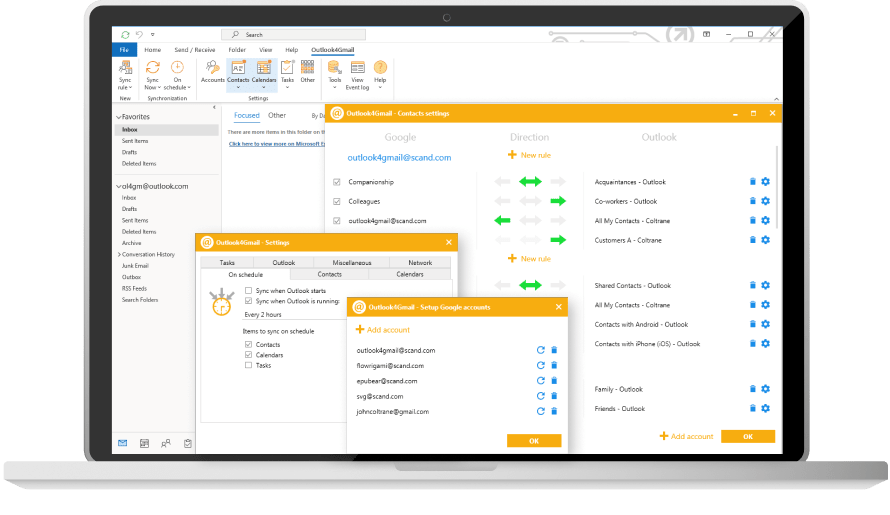
Key Release Notes
- Synchronization of Google Contact Group/Label with selected Outlook folder and vice versa.
- Read and manage the Google Contacts with People API service.
- Task synchronization option.
- Recurring Outlook Tasks with Google Task list syncing.
- Support of multiple Google accounts, synchronization supports ‘one-to-many’, ‘many-to-one’ and ‘many-to-many’ syncing relationships.
- Implemented customization of synchronization rules for any Google account or any Outlook folder.
- Ability to skip synchronization of past events (older than 1 month, older than 1 year and etc.).
- Internet calendar support.
- Added contacts synchronization from multiple Outlook folders with a Google account.
- Two-way Outlook contact categories sync with Google groups.
- Full support of all contacts’ phone number types.
- Contact’s picture sync.
- Multilingual user interface (English, German, French and Russian).
- Support of multiple Outlook Data Files (*.pst).
- Microsoft Exchange Server support.
Please, check out the full list of release notes.
Technical support and one year free update is available only for commercial version of Outlook4Gmail. See Outlook4Gmail license agreement. The free version that mostly allows Contact syncing and supports basic filter settings goes without additional support from the development team. Note! The commercial version of Outlook4Gmail allows adding Google calendars to Outlook easily and seamlessly. Free and Full version features comparison
FAQ
How to request 7 day trial version?
You are able to use a full-featured trial version of Outlook4Gmail for 7 days for free.…
Read moreHow to perform Product Activation?
To activate Outlook4Gmail you have to enter your e-mail address and the Product Key in ‘Product…
Read moreHow to Sync my Contacts
How to Sync my Contacts Note that, before you try to sync contacts, your Google account(s)…
Read moreHow to Sync my Calendars
How to Sync my Calendars Calendar settings are active only for the users who purchased the…
Read moreHow to Report an Issue?
We are ready to answer all questions you might have. To report an issue, click on…
Read moreHow to use Outlook4Gmail?
Please, check out our Video tutorials
Our customers are our top priority, and we strive for 100% satisfaction with our software. If you have any questions or concerns, don’t hesitate to drop us a line to outlook4gmail@scand.com